



.jpg_1759869177.3989_9564518c87_fullsize.webp)


.jpg_1758051740.5057_0ad83a0b80_fullsize.webp)
Published May 02, 2026
18.184K
How to Buy on Whatnot: Shopper's Guide to Live Marketplace Deals
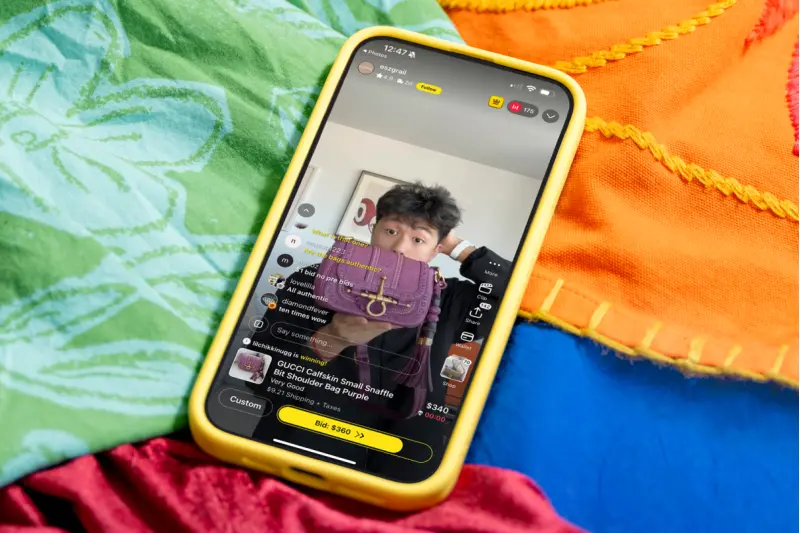
E-commerce has rapidly evolved from static product pages into interactive, real-time experiences. If you are exploring modern digital shopping platforms, Whatnot stands out as a high-energy hybrid of live broadcasting and traditional retail. Often described as a mix between a live-streaming app and an auction house, Whatnot allows shoppers to watch live video feeds, chat with sellers, and purchase items instantly.
Whether you are hunting for rare collectibles, sourcing vintage denim, or curating pieces for a seasonal capsule wardrobe, understanding how to navigate Whatnot’s unique ecosystem is essential for getting the best value. This guide breaks down exactly how to buy on Whatnot, detailing the different purchasing formats, payment mechanics, and strategies to secure the items you want.
What is Whatnot?
Whatnot operates primarily as a mobile-first platform (though accessible via desktop) built around live commerce. Sellers host scheduled or spontaneous "shows" where they showcase products on camera. As a buyer, you can join these streams, interact in the chat, and make purchases.
The platform divides buying into two main categories:
- Live Shows: Fast-paced, real-time events featuring live auctions, giveaways, and instant purchases.
- The Marketplace (Outside of Shows): A traditional e-commerce setup where you can browse a seller’s inventory and purchase fixed-price items at your own pace.
To participate in either, you must first create an account and save a valid payment method and shipping address. Because Whatnot emphasizes speed—especially during live auctions—having your logistics set up beforehand is a strict requirement.
How to Buy During Live Shows
Live shows are the beating heart of Whatnot. When you enter a stream, you will typically see the seller presenting an item, a live chat scrolling at the bottom, and a purchase interface. Sellers dictate how items are sold, utilizing a few different formats.
Bidding in Live Auctions
Auctions are the most common way to buy during a broadcast. The seller sets a starting price, and a timer begins counting down.
- Swipe to Bid: The primary mechanism for bidding is the "Swipe to Bid" button (or clicking on the web). The app automatically calculates the next valid minimum bid increment based on the current price. You will always see the exact amount before you confirm your swipe.
- Custom and Max Bids: If you want to jump ahead of the standard increments, you can tap the "Custom" button. Here, you can enter an exact amount or set a Max Bid. With a Max Bid turned on, Whatnot’s system will automatically place bids on your behalf in minimum increments up to your specified limit. This is highly effective in fast-moving streams where manual swiping might be too slow.
- The Standard Timer vs. Sudden Death: Most auctions feature a standard timer (e.g., 30 seconds). In a standard auction, any bid placed near the end of the countdown will add a few extra seconds to the clock, giving others a chance to respond. However, sellers can trigger Sudden Death auctions. Marked by a skull icon next to the timer, these auctions add absolutely no extra time. When the clock hits zero, the highest bid wins instantly.
Pre-Bidding Before a Show
You do not have to be present in a live stream to win an auction. If a seller has pre-loaded their inventory before going live, you can browse their store and place a Pre-Bid. This functions identically to a Max Bid. Once the seller runs that specific item during the live show, Whatnot will automatically bid for you up to your pre-set limit.
Buy It Now (BIN) and Flash Sales
Not everything in a live show requires a bidding war. Sellers often list Buy It Now (BIN) items. You simply tap the "Buy Now" tab in the seller’s shop during the stream and purchase the item for the stated fixed price.
Occasionally, sellers will run a Flash Sale — a heavily discounted BIN item available only for a brief window, sometimes just seconds. Securing a Flash Sale requires quick reflexes and pre-saved payment details.
Giveaways
Sellers frequently run giveaways to boost engagement. If a giveaway is active, a box will appear at the top of your screen. Tapping it enters you into the drawing. Standard giveaways are free to enter, and the seller covers the shipping. Some sellers run "Buyer Appreciation" giveaways, which are exclusive to users who have already made a purchase during that specific stream.

Specialty Buying Formats: Breaks
In specific categories — particularly trading cards and sports memorabilia — you will encounter "Breaks". Instead of buying a single physical item, you are buying a spot or a share of a larger sealed product (like a box of trading cards) before it is opened live on camera.
- Random Spot: You buy a slot, and once all slots are sold, they are randomly assigned to a specific team or character. You receive whatever cards are pulled for your assigned team.
- Pick Your Team/Spot: You pay a specific price to claim a designated team or character outright. Popular teams usually cost a premium.
- Hit Draft: The seller opens the product first. Buyers purchase a draft position and then take turns selecting the specific items they want from the opened pool.
Buying Outside of Shows (The Marketplace)
If the high-energy environment of a live stream isn't your preference, Whatnot functions as a standard asynchronous marketplace as well. You can visit any seller’s profile at any time, navigate to their "Shop" tab, and filter by Buy It Now.
Making an Offer
Many sellers enable an offer feature on their static BIN listings. If you see a "Make Offer" button, you can suggest a lower price.
- You can choose a standard percentage discount or type in a custom monetary amount.
- When you submit an offer, your payment is not charged immediately.
- The seller has the option to Accept, Decline, or Counteroffer.
- If the seller accepts, the transaction processes automatically using your saved payment method. Offers expire automatically after 30 days if left unaddressed.
Payment, Shipping, and Buyer Etiquette
Whatnot enforces strict rules to protect both buyers and sellers, ensuring the platform remains trustworthy and efficient.
Binding Bids
The most critical rule on Whatnot is: You bid, you buy. All auction bids are binding contracts. If you win an auction, your default payment method is charged immediately and automatically. There is no traditional "checkout cart" for auction wins. Canceling purchases after winning or attempting to file chargebacks for buyer's remorse can result in immediate account suspension or a permanent ban.
Shipping and Smart Bundling
Shipping costs are displayed underneath an item's title before you bid or buy. To help buyers save money, Whatnot utilizes a "Smart Bundling" feature. If you buy multiple items from the same seller during the same show, the system automatically calculates the combined weight and dimensions, often reducing the overall shipping cost compared to buying items individually.
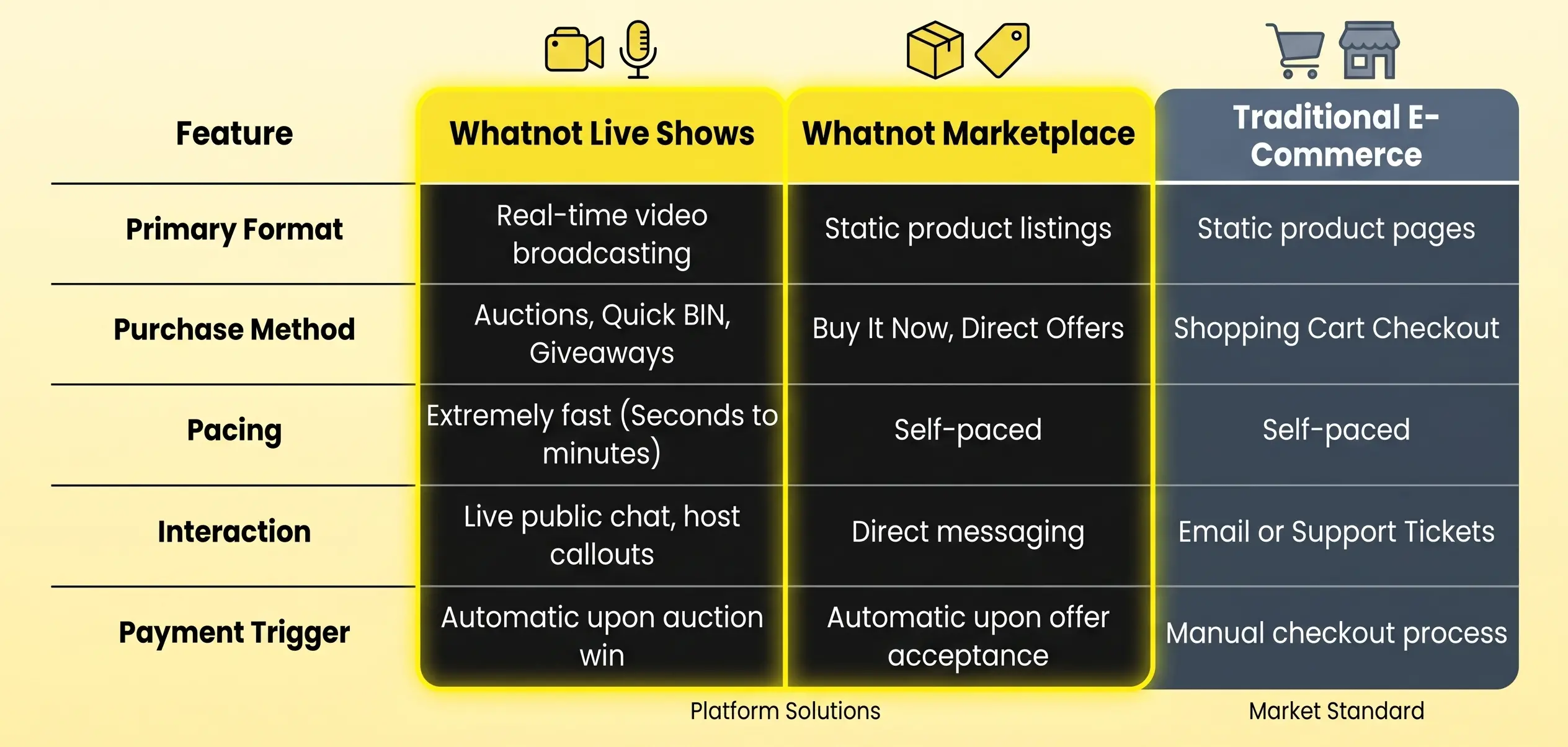
Whatnot vs. Traditional E-Commerce
To understand where Whatnot fits in your shopping strategy, here is a breakdown of how it compares to standard online retail platforms.
Pro Tips for Maximizing Your Buying Experience
- Utilize Bookmarks: If you are trying to curate a specific aesthetic or looking for particular seasonal outfit elements, use the search function to find upcoming shows focused on those categories. Bookmark the shows so the app notifies you when the seller goes live.
- Understand the Premium of Popularity: In live streams with hundreds of viewers, auction prices can easily inflate due to the competitive atmosphere. Set a firm mental budget or rely heavily on the Max Bid feature to prevent yourself from overspending in the heat of the moment.
- Inspect the Screen: Since items are shown live, pay close attention to the video feed. Good sellers will highlight flaws, show different angles, and answer questions in the chat. If you need to see a detail up close, ask the seller in the chat before you swipe to bid.
- Take Advantage of Pre-Bids: If you know you cannot attend a scheduled show but see an item you desperately want in the seller's preview inventory, place a pre-bid. It ensures you have a seat at the table without needing to stare at your screen.
Frequently Asked Questions About How to Buy on Whatnot
Can I cancel a bid if I make a mistake?
No. Bids on Whatnot are binding. However, if there is a glaring, obvious error (such as accidentally typing a $1,000 custom bid on a $10 item), Whatnot support and the seller may intervene to cancel the auction and relist the item fairly. But generally, you must review your amounts carefully before swiping.
How do I track my purchases?
You can view all your won auctions, BIN purchases, and accepted offers by navigating to your profile and checking under the "Activity" > "Purchases" tab. Here, you will find your digital receipts and tracking numbers once the seller ships the item.
What happens if my item arrives damaged or isn't as described?
Whatnot offers a buyer protection program. If an item is fundamentally different from how it was presented on the live stream, or if it arrives damaged in transit, you can open a support ticket directly through the app. Whatnot's internal team mediates these disputes and processes refunds when appropriate.
Affiliate Disclosure: This article contains affiliate links to the Whatnot platform. If you click on these links and choose to register or make a purchase, we may earn a referral commission. This commission comes at no additional cost to you and supports the ongoing research and publication of high-quality e-commerce and lifestyle content. All opinions and recommendations remain strictly our own.